paperlessprinter now also available for Windows and Linux
Your paperlesspaper Display can now be used on Windows, Linux, and macOS just like a regular printer.
Your paperlesspaper display (and every other EInk display with an API) can now be used like an ordinary printer on Windows, Linux, and macOS.
At the beginning of the year we introduced the paperlessprinter. The idea behind it is simple:
Print job → Image → E-Ink display
Instead of printing a document on paper, the first page is converted into an image and sent directly to your paperlesspaper display.
Setup was previously mainly geared toward macOS, but it now also works with Windows 11 and Linux.
You can find it Open Source on GitHub.
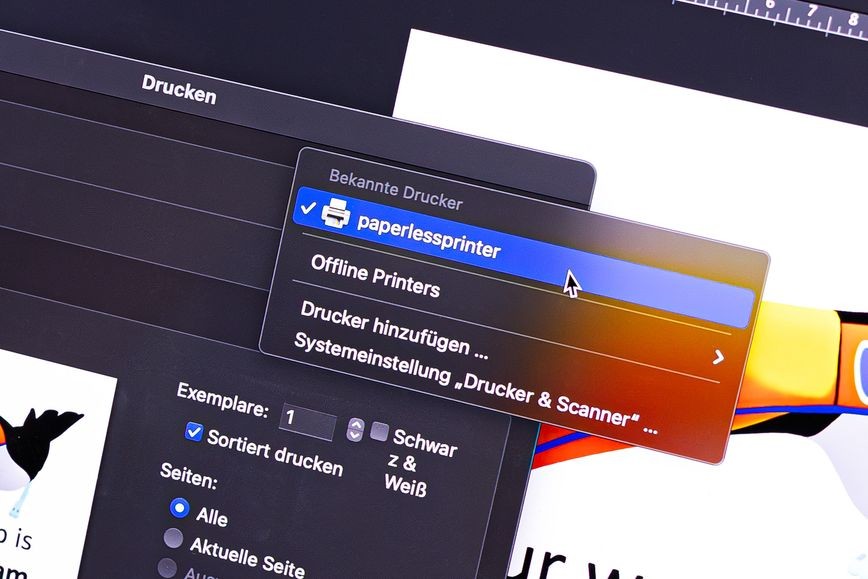 So sieht das ganze auf Mac aus
🪟 Paperless Printer on Windows
On Windows, the Paperless Printer uses the built-in Microsoft IPP Class Driver. So you don't need to download a separate driver.
Here's how to set it up:
- Open the printer integration for the desired display in the paperlesspaper app.
- Copy the printer address shown there.
- On Windows, open Settings → Bluetooth & devices → Printers & scanners.
- Select Add device and then the option to manually add an IPP printer.
- Paste the full printer address.
After that, the display will appear normally in your print dialogs. You can then print directly to it, for example from Word, your browser, or a PDF program.
🐧 Paperless Printer on Linux
On Linux, setup works via CUPS and IPP Everywhere. Depending on your distribution, you can add the printer directly through the printer settings.
Select a network printer or IPP printer there and use the printer address from the paperlesspaper app.
If you prefer to set it up via the terminal, you'll find the appropriate command and further technical details in our open-source repository on GitHub.
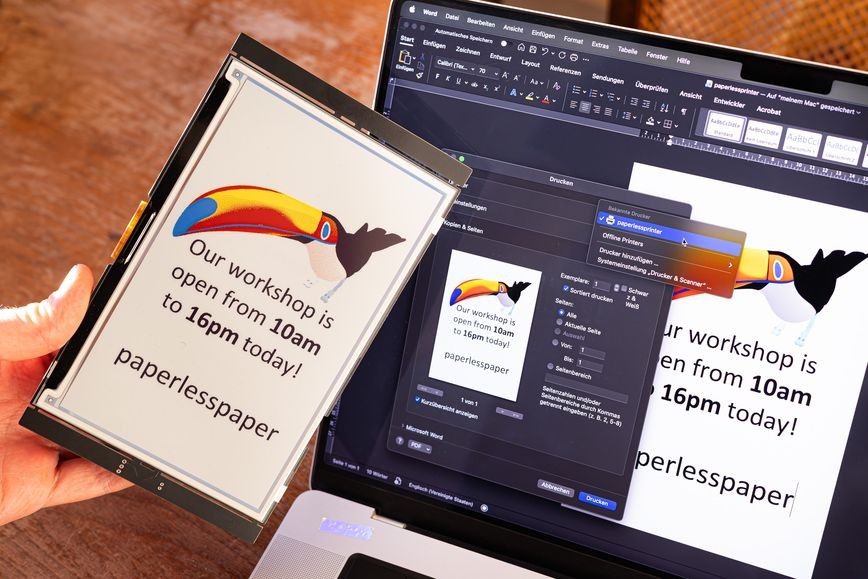 Das kann man damit machen.
What can you do with it?
Basically, you can send anything to your display that you could also print on a regular printer:
- Shopping lists
- Recipes
- Daily and weekly schedules
- Tickets and travel information
- Notes for family or colleagues
- Presentation slides
- Documents and PDF files
- QR codes
You can also select the appropriate formats for the OpenPaper 7 and the Open Paper L in the print dialog — each with normal margins or borderless.
One display, multiple printers
If you use multiple paperlesspaper displays, you can set up a separate printer for each one. This lets you, for example, print directly to the frame in the office, the kitchen, or the meeting room.
The printer address contains the access credentials for the respective display. Treat it like a password and don't share it in screenshots or public posts.
Printing, just without paper
The biggest advantage is that you don't have to change your usual workflow. You still just click on Print — only this time the result doesn't end up on a sheet of paper, but on your E-Ink display.
The Paperless Printer is open source. You can find the source code, technical background information, and detailed instructions for Windows, Linux, and macOS on GitHub.
Enjoy printing without paper! 💛